
Tutorial to create a credit card in photoshop.
In this tutorial, we’ll learn how to create a credit card in phtoshop.
Step 1
Create a new document of size 600×600 and with any background color or texture of your style. Here I have put some gradient effect.

Step 2
Create a new layer. Draw a rectangle using the rounded rectangle shape tool and fill it with white color. Set the radius of the edges to about 10px.

Step 3
Now open the blending options for this shape and apply the following effects on the layer. For the gradient overlay use the following colors #ffdd40, #e6c345, #fbe54f, #f6e886.


Step 4
Next take an image of a world map, I have taken one from here.

Step 5
Now play with some Hue & Saturation settings of this image to give it a tint of the credit card’s color. Resize it to fit within the credit card’s rounded rectangular layer. Also decrease the opacity of this map layer to about 40%.

Step 6
With the rounded rectangular layer selected, grab the ellipse selection tool. Check the Subtract from Selection option in the menu. Drag the ellipse shape tool, over the selected portion, so as to get a shape as shown below.


Step 7
Create a new layer with the above selection and fill it with white color. Decrease the opacity of this layer to about 25%.
Step 8
Similarly draw another shape, but htis time of somewhat smaller size and on the diagonally opposite corner. Fill this layer with #ecb213 color. Decrease the opacity of this layer also to 25%.

Step 9
Next take another stock image for a globe and resize and place it above all the layers.

Step 10
Put some outer glow color- #eeffac on this globe image.

Step 11
Create two small circular layers of red and dark yellow color and place it as shown below.

Step 12
Next give some bank name to your credit card. Here I have used Serif Fonts. Place this text layer on top of all layers and apply the following blending options to this text layer. Take the font color as #a6640c


Step 13
Similarly give some credit card type here and apply the following blending options to it. Here also take the font color as #a6640c.

Step 14
Your credit card will now look something like this.

Step 15
Next write some credit card number with the text color set to #955b0f.


Step 16
Now the Credit card will look like this.

Step 17
Now add two dates to the credit card and apply the following blending options to it.

Step 18
Next add a credit card holder name and apply the following blending options to it.


Step 18
Your credit card will looklike this now

Step 20
Next to get the shadow effect, just draw a thin ellipse, crate a new layer and fill it with black color. Gaussian Blur the layer with a value of about 3 and finally decrease the opacity of this layer to about 75%.
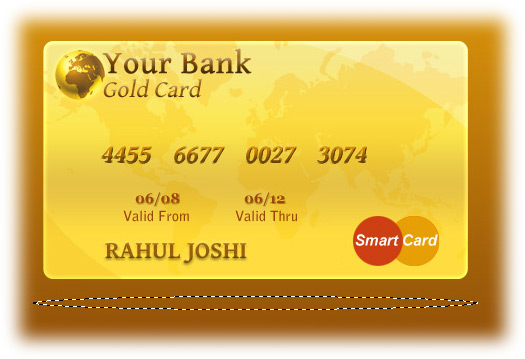

Final Step
Finally I have added some reflection to the layer by flipping the complete credit card horizontally, adding a layer mask and applying a linear black and white gradient on that mask.


Very nice pic :-). Keep it working
Nice tutorial, i love it!
Thank you! It’s realy useful tutorial.
Tutorial is very nice, but if a noob want´s make this it´s very difficult for people who don´t know photoshop.
But it´s still a nice tut.
omg thats super nice
nice tutorial I made myself one but I think that you can still improve the tut by including some colors like the ones in the Gradient Overlay in step 15 … I just had to figure out the colors myself using the Eyedropper tool to complete the card … but it was a really cool and easy to follow tutorial even though I am a beginner at photoshop …
You have sick skillz, my friend. Truly brilliant and inspring work. I’m gonna try and duplicate it, and put a shadow in diagonal corners, to try and make it look like it’s in a card holder. I hope I don’t butcher it… lol
Thanks for sharing!
Hi Friend…
Its really so so nice and looks amazing…
Thanks for this tutorial…
Great Tutorial.
I would suggest a little more in regards to tools you using and how your using them. I use Photoshop a bit .. not all the fancy stuff and I struggled in some areas and had to work around for others as gave up in frustration.
Effect details are excellent and the end effect is excellent.
great tutorial,
i have add this in my blog
http://click9.net/2010/09/02/10-credit-card-template-psd/
it is good.
nice tutorial
Hi…it looks awesome. I was wondering that is it possible to add a very blurry wire mesh in the background? I have seen seen this effect in many credit cards..If yes, please demonstrate…Thanks in advance..